Keep personal Instagram chats out of Zaptium
Your Instagram account doesn’t just get customer messages. Family, friends and people you work with message you there too, and some of those chats are nobody’s business but yours. Chat privacy lets you keep any one of them entirely outside Zaptium, and delete what Zaptium has already saved from it.
Why a personal chat reaches Zaptium at all
When you connect an app to your Instagram account and let it manage your messages, Instagram sends that app every DM and comment your account receives, not just the ones your automations need. That’s how Instagram works for every connected app. So a chat with your mum or a friend checking in arrives at Zaptium along with everything else.
When you make a chat private, Zaptium discards that person’s messages the moment Instagram delivers them. They’re never saved, so they cannot be read by anyone at Zaptium or used for automations, AI replies or analytics.
Make a chat private in 4 steps
- Open the Chat privacy page from the app menu. On a phone, it’s under More. Each person who has messaged your account gets a card, with the most recent chats at the top.
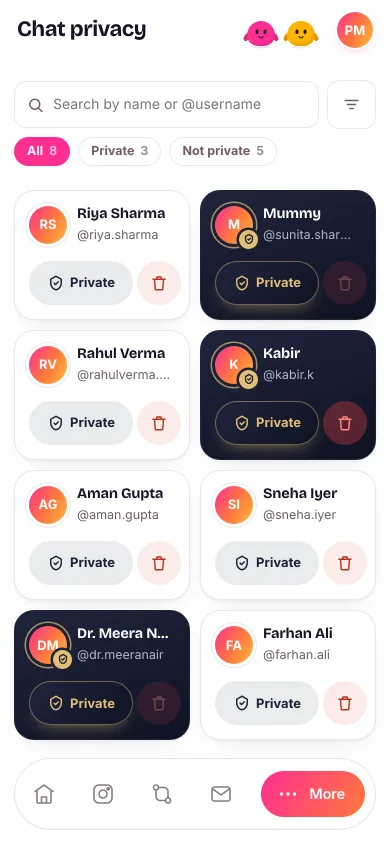
- Choose the account. If you’ve connected more than one Instagram account, pick the one the chat is on from the account menu above the list (on a phone, tap the filter button next to the search box). Each account has its own list.
- Find the person. Type at least three letters of their name or @username into the search box, or switch between All, Private and Not private to narrow the list. Each one shows how many people it holds.
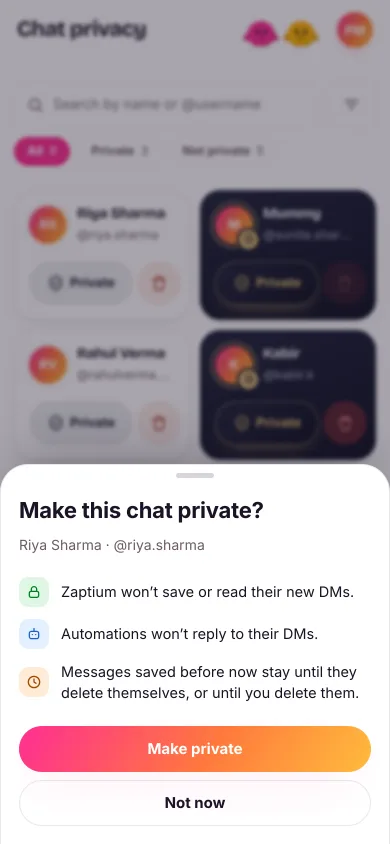
- Tap Private on their card, then confirm. A box sums up what changes; look for the Make private button to go ahead. The card turns dark navy with a gold seal on their picture, so private chats stand out at a glance.


What changes once a chat is private
From that moment, their DM chat is discarded as soon as it arrives, and Zaptium never saves or reads it. That covers:
- their DMs and story replies;
- the buttons they tap in your automated messages;
- the replies you send them yourself from the Instagram app.
Automations won’t reply to their DMs, and nothing from the chat shows up in Priority Inbox, AI replies or your analytics. Instagram still delivers their messages to Zaptium, as it does to every connected app; Zaptium throws them away on arrival instead of keeping them.
Their comments on your posts are public anyway, so Zaptium handles those as usual: your comment automations still reply, and their comments still reach Priority Inbox. If an automation answers a comment with a private reply, that one reply still reaches their DMs. Anything they send back in DMs is discarded, so the automation stops there.
Your chat in Instagram doesn’t change at all. You and they see every message there as usual.
Making a chat private only affects messages from then on. Anything Zaptium saved before stays until it deletes itself on its normal schedule, or until you delete it yourself (see below).
Make a chat private from Priority Inbox
Spotted a personal chat in your Priority Inbox? Open it, tap the three-dot menu at the top of the conversation, and choose “Make this chat private.” It asks you to confirm the same way. The option is there on DM and story-reply conversations; comment threads are public, so they don’t offer it.

From then on, that conversation, and any other DM or story-reply conversation with them, shows only a notice that the chat is private: no messages, no preview and no reply box. Their comment threads show as usual.
Let Zaptium handle a chat again
Changed your mind? Tap the Private switch again on a private card and confirm. Zaptium handles that person’s new messages again from then on. Nothing from the private period was ever kept, so there’s nothing to bring back.
Delete what Zaptium already saved
To remove the messages Zaptium saved from someone’s DM chat, tap the bin button on their card. The box tells you how many messages will go, and Zaptium deletes their DM and story-reply conversations from Priority Inbox and their chat history from your automations. The bin is greyed out when there’s nothing saved for that person.

- If the chat isn’t private yet, “Also make this chat private” is ticked for you, so nothing new is saved after the delete. Untick it if you only want to clear what’s there.
- Their profile, comments and any lead record stay. Deleting their messages doesn’t remove the person or their lead, and their public comment threads stay in Priority Inbox.
- Your Instagram chat isn’t affected. Every message is still there in Instagram.
- It can’t be undone. Once they’re deleted, Zaptium can’t get them back.
Making a chat private doesn’t remove what Zaptium saved before then. If you want both, use the bin instead and leave “Also make this chat private” ticked: the chat becomes private and its saved messages are deleted, in one go.
How Zaptium looks after everyone else’s messages
For every chat that isn’t private, here’s what happens to what Zaptium saves:
- Each message is encrypted on its own. Every saved message is individually encrypted with AES-256-GCM before it’s stored, on disks that are encrypted too, with encrypted backups.
- Saved messages delete themselves. Automation chats are deleted after 90 days, and Priority Inbox conversations after 12 months.
- Unsent means deleted. When a customer unsends a message, Zaptium deletes its copy as soon as Instagram reports it.
Who can read saved messages
Inside Zaptium, saved messages are read only by your automations and inbox rules, the AI behind them, and your own team. In rare cases, our team may view only individual messages, to fix an issue you raise or one we detect.
Who on your team can change it
Only the account owner or an admin can make a chat private, let Zaptium handle it again, or delete saved messages. Anyone on your team can open the Chat privacy page and see which chats are private.
What’s next
See how the rest of your account is protected in how Zaptium keeps your account safe, or get to know the priority inbox, where the chats that do need you land.
Keep your personal chats personal
No card needed. Connect your account and go live in minutes.
Start free